I CREATE FOR




Blinkies








Grab My Blinkie

Wednesday, March 20, 2013
Dreamer

Dreamer
I am using the amazing artwork of Zindy Nielsen.
You can purchase it here: Zindy
Scrapkit "Walking on Air" by Tygers Tidbits
Thank you Tyger for the wonderful kit.
You can purchase it here: DigiFox Studio and Twilight Scraps
Mask and Font of choice
1. Open New Image 500 X 500
2. Floodfill with paper11
3. Go Selections Load/Save Mask and choose your mask. Merge group and add Drop shadow of your choice
4. Add New Layer Floodfill with paper08
5. Repeat number 3
6. Copy and Paste watch element. Resize to your liking and place in the lower right hand corner. Add Drop
Shadow of your choice.
7. Copy and Paste Pink Flower element. Resize to your liking and place in right hand corner over the chain on the watch.
Add Drop Shadow of choice.
8. Copy and Paste Blue Flower element. Resize to your liking and place below the pink flower on the chain. Add Drop
Shadow of your choice.
9. Copy and Paste butterfly element 47. Resize to your liking and place between the two flowers. Add Drop Shadow of
your choice.
10. Copy and Paste Bubble element16. Duplicate and Mirror the copy. Move both below your mask layers.
11. Copy and Paste Pink Rock and place it in the lower left hand corner.
12. Copy and Paste Blue Rock and place in the same corner just moved over alittle.
13. Copy and Paste Word Art. Resize to your liking and move to the upper right hand corner of your image. Add
Drop Shadow of your choice.
14. Add Tube of choice. and move it below your rock and watch layers. Add Drop Shadow of choice
15. Add Copyright info and Text.
16. Resize and save.
That's it..... I hope you have enjoyed my tutorial. If you have any questions please
feel free to leave a message in the Chatbox.
This tutorial was written January 2013 by me(Koolbrat) any similarities to another is just a coincidence.
Wednesday, January 30, 2013
Sweet Tea Tag
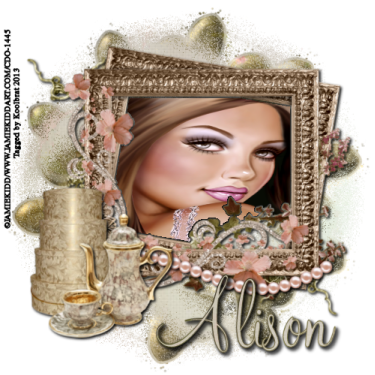
Sweetness

Sweetness
I am using the amazing artwork of Jamie Kidd.
You can purchase it here:CDO
Scrapkit "Sweet Little Lies" by Sarah
Thank you Sarah for the wonderful kit.
You can purchase it here: SATC
Mask and Font of choice
1. Open New Image 500 X 500
2. Floodfill with paper 8
3. Choose Mask of your choice and load it
4. Merge group
5. I lowered the visablity to 68, but you may leave it if you like.
6. Copy and Paste vine. Add Drop Shadow to your liking
7. Move below your group layer
8. Copy and Paste doodle-1. Add Drop Shadow
9. Move below your vine layer
10. Copy and Paste flowers-scatters. Add Drop Shadow
11. Copy and Paste frame2 resize to your liking
12.Copy and Paste your tube. Make sure that you resize so that it fits into the frame.
13. Move tube under your frame layer.
14. For this I used my magic wand and selected inside the frame in the middle.
15. Copy and Paste your tube into Selected area
16. Select None
17. Same thing just use a different part of your tube for the third side of the frame. I use the magic wand cause it
fills the whole area. The only reason that I didn't do this with the first part of the frame is because it stretched
the tube out so that it was distorted.
18. Copy and Paste pillow. Resize to your liking and add Drop Shadow
19. Copy and Paste bisque-roses. Resize to your liking and add Drop Shadow
20. Add your Copyright info and Text
21. Merge Visible and Save
That's it..... I hope you have enjoyed my tutorial. If you have any questions please
feel free to leave a message in the Chatbox.
This tutorial was written January 2013 by me(Koolbrat) any similarities to another is just a coincidence.
Monday, January 28, 2013
Good Afternoon
Going to be working on the site this week.... I need to get everything organized and ready for the new year..... So if there are things that disappear then please be patient with me.... I should have everything back up and running smoothly by the end of the week.... Thanks and I can't wait for the new look!!!!!!!!!
Friday, June 1, 2012
Hello
It has been awhile since I was able to get on here and do anything.... I am going to be working on changing things alittle in the next few weeks... Keep your eyes open for the new look!!!!!!!!!!!!!!
Thursday, March 1, 2012
Love Me

Love Me
I used the amazing artwork of Ismael Rac
You can purchase it here: RAC
Scrapkit "All for Sweet Love" by Stef
You can purchase it here:Stefsscraps
Mask and Font of choice
1. Open new image 500 X 500
2. Floodfill with paper01
3. Go Layers/ Load Save Mask/ Load Mask from Disk. Find your mask and merge group
4. Copy and Paste element 10 resize and place the upper right hand corner of your image
5. Copy and Paste element 52 resize and place to your liking
6. Copy and Paste your tube
7. Copy and Paste element 14 move under your love layer
8. Copy and Paste element 50 and move unders your mask layer
9. Copy and Paste element32 resize and place to your liking
10. Add your copyright info
11. Add a friends name
12. Merge Visible and Save
That's it..... I hope you have enjoyed my tutorial. If you have any questions please
feel free to leave a message in the Chatbox.
feel free to leave a message in the Chatbox.
This tutorial was written August 2012 by me(Koolbrat) any similarities to another is just a coincidence.
Hugs

Hugs
I used the amazing artwork of Pinuptoons
You can purchase it here:CDO
You can purchase it here:CDO
Scrapkit "Wanna be my Valentine" by Stef
You can purchase it here:Stefsscraps
Mask and Font of your choice
You can purchase it here:Stefsscraps
Mask and Font of your choice
1. Open new Image 500 X 500
2. Floodfill with paper03
3. Go Layers/Load Save Mask/ Load Mask from Disk. Find your mask and merge group
4. Add new layer and Floodfill with paper02
5. Go Layers/Load Save Mask/ Load Mask from Disk. Find your mask and merge group
6. Copy and Paste element34 and move below both your mask layers
7. Copy and Paste element46
8. Copy and Paste element18
9. Copy and Paste element14 resize to your liking place to your liking
10. Copy and Paste element48 resize to your liking move to the upper left hand corner of the frame
11. Copy and Paste element 38 resize to your liking place on the lower right hand side of your frame
12. Copy and Paste element37 resize place in from of your last flower
13. Add your tube
14. Add your ccopyright info
15. Add a friends name
16. Go to your gold mask layer and duplicate it 2 times
17. Cross out the duplicated layers and make sure that your orginal layer is highlighted
18. Go Adjust/ Add Remove Noise/ Add Noise Setting Gaussian and 25
19. Cross out the orginal layer and uncross the first duplicated layer. Repeat 18 Settings 30
20. Cross out the first duplicated layer and uncross the second duplicated layer. Rrepeat 18 Settings 35
21. In you layer palette cross out both duplicated layers and Merge Visible
22. Copy merged and paste in Animation Shop
23. Now go back to PSP and go edit and undo merge visible
24. Uncross the first duplicated layer and cross out the orginal. Repeat 22 except paste after current frame
25. Now repeat 23 and uncross the second duplicated layer.
26. Repeat 25
27. Resize your image by going Edit/ Select All/ Animation/ Resize Animation
28. Save
That's it..... I hope you have enjoyed my tutorial. If you have any questions please
feel free to leave a message in the Chatbox.
feel free to leave a message in the Chatbox.
This tutorial was written July 2012 by me(Koolbrat) any similarities to another is just a coincidence.
Subscribe to:
Posts
(Atom)